Make Your Phone Vibrate Easily: Quick Guide to Test and Fix Vibration Issues
If your notifications are slipping through the cracks because the vibration feature isn’t working, you’re in the right place.
To some up this guide will walk you through easy steps to make your phone vibrate and resolve common vibration issues. Stick around for a quick yet thorough rundown that will keep you connected.
How to Make Your Phone Vibrate Instantly
It’s very simple to make your phone vibrate instantly, and understanding the settings can be a game-changer. Most smartphones have options tucked away that allow you to customize vibration.
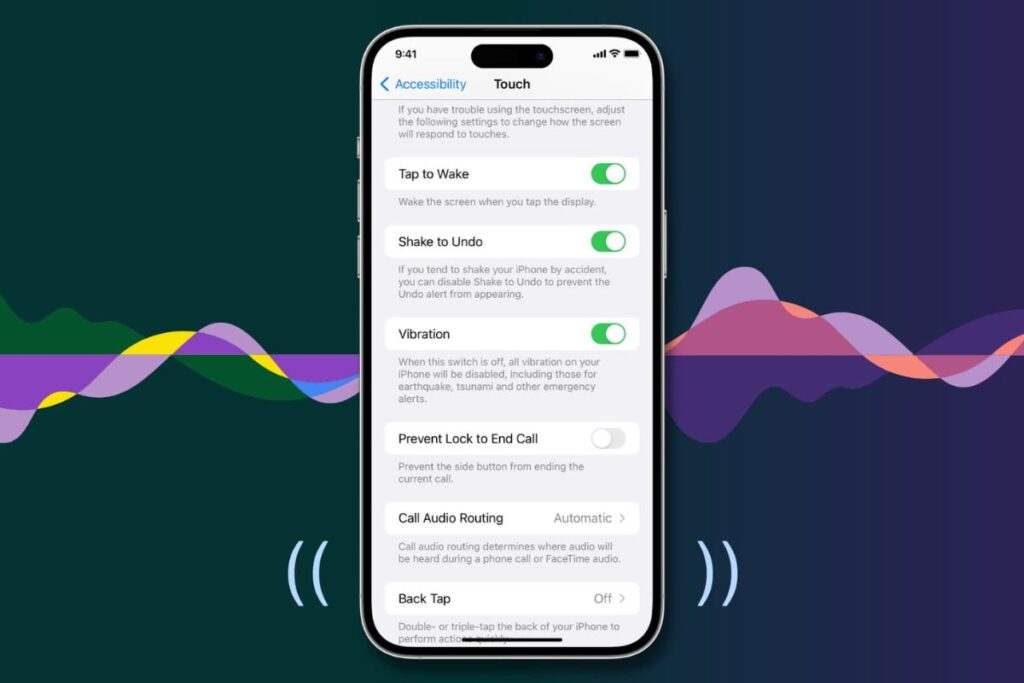
For example, on Android, navigating to the “Sound & Notification” section lets you adjust vibration intensity for calls, notifications, or even specific apps. This means every alert can now be tailored to your preferences, making it easier to feel that gentle buzz, even in noisy environments.
You can also read Fix My Speaker Dust : How to Clean Dust and Improve Sound Quality
Setting Custom Vibration Alerts
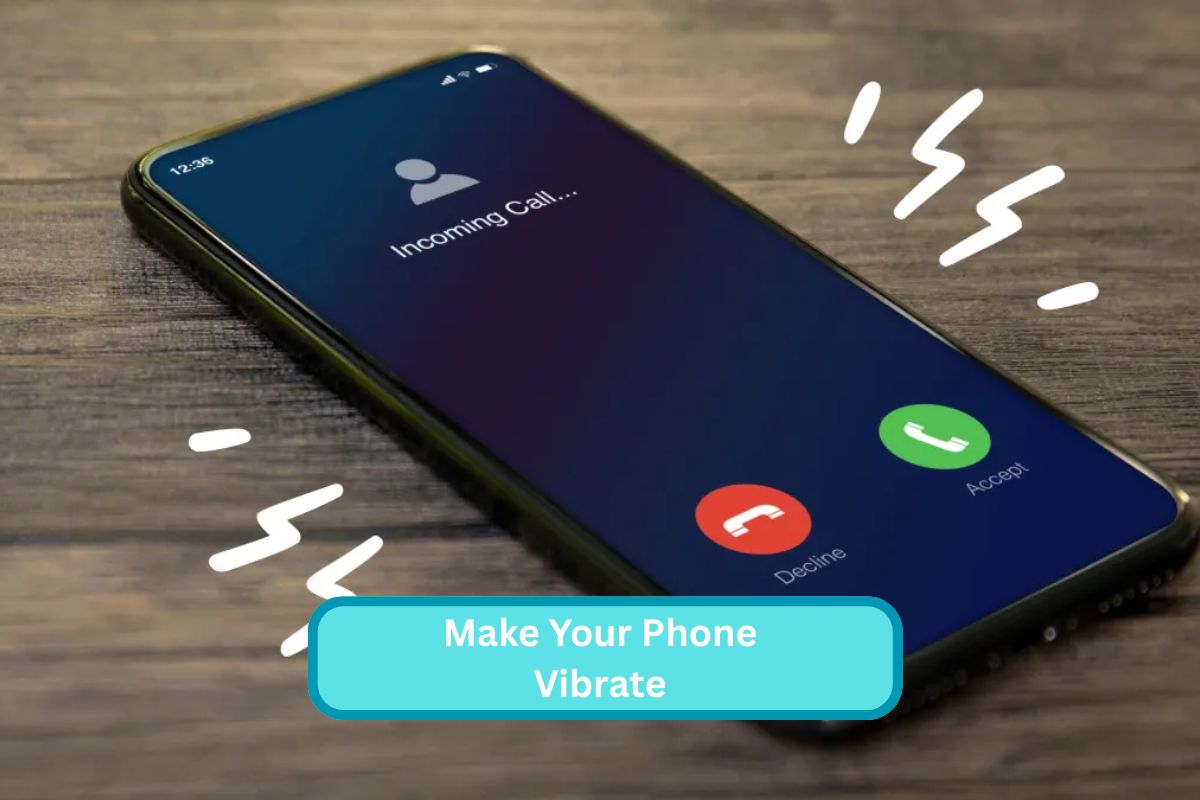
Custom vibration alerts can transform how you interact with your phone, allowing you to stay discreetly in tune with notifications. Vibrate my phone to receive notifications quietly and avoid any loud interruptions. Learning how to put your phone on vibrate is just the beginning; the true magic lies in personalizing these vibrations to fit your lifestyle.
For instance, instead of a generic buzz, you can create distinct patterns for different contacts or apps. This nuance helps you decide whether to grab your phone or let it stay nestled in your pocket.
How to Turn on Vibrate for Silent Mode
To turn on vibrate for silent mode, start by accessing your phone’s settings. For most devices, you can find this under Sound or Notifications. Look for an option that says “Vibrate” or “Vibration settings. Turn on vibrate mode to keep your phone silent while still feeling every alert or call.
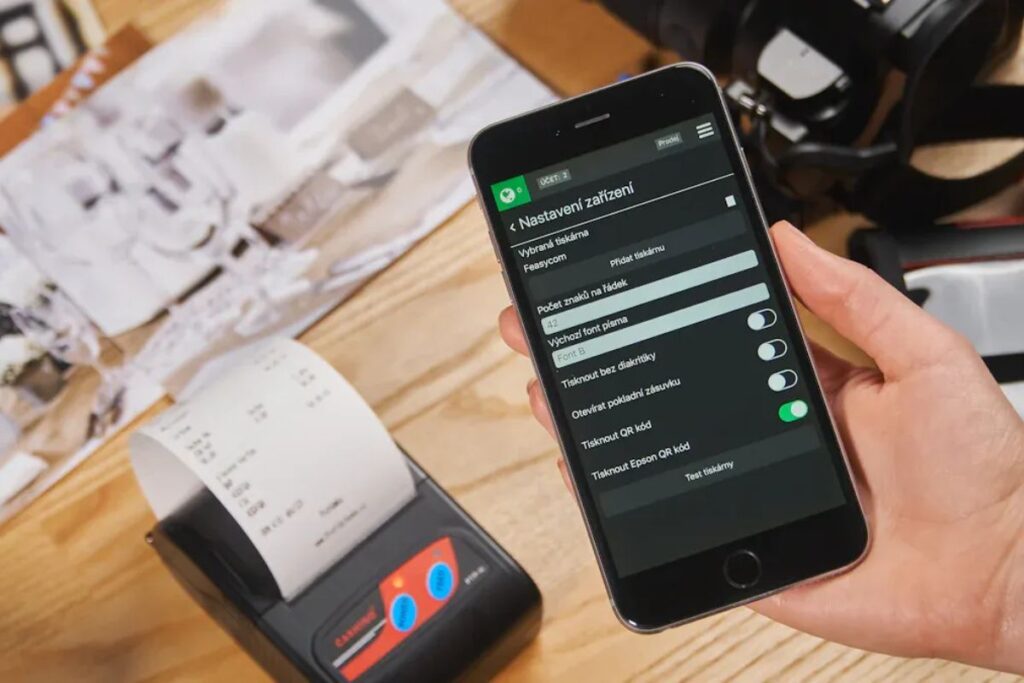
For iPhone
In the ever evolving realm of the iPhone, customization is key to personalizing your device. If you’re looking to enhance your notifications without compromising the serenity of silent mode, there’s a simple yet effective way to do so.
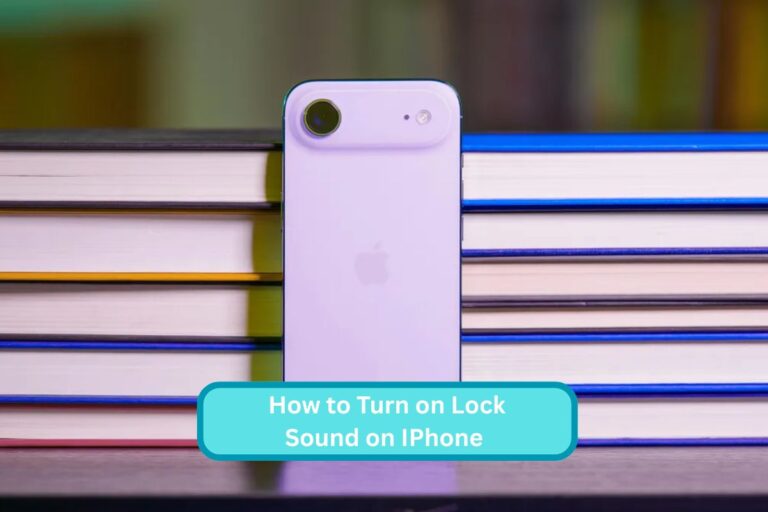
Head to Settings, Sounds & Haptics, and under the Haptics section, enable Play in Silent Mode. This adjustment allows your iPhone to vibrate with notifications and alerts, even when the ring is switched off ensuring you never miss an important message or alert.
For Android
Customizing notification settings on your Android device can significantly enhance your user experience, ensuring you never miss an important call or message. Steps may vary by device, but here’s a general guide.

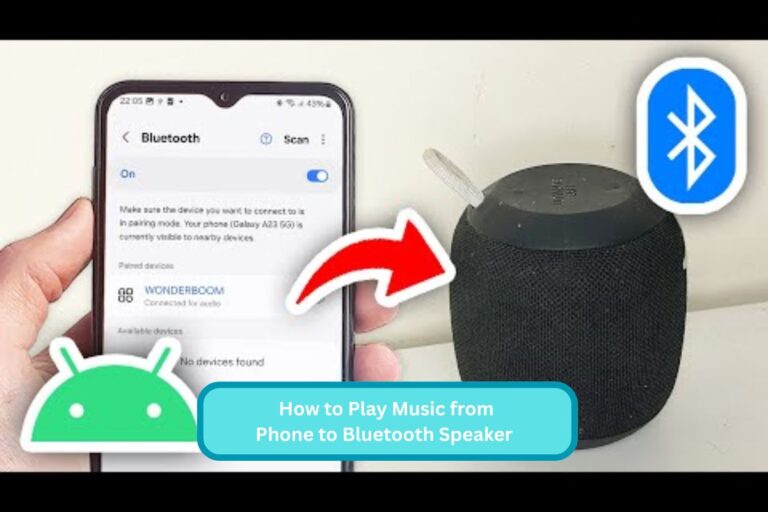
Start by opening the Settings app and navigating to Sound & vibration (or simply Sound depending on your interface). From here, you can turn on Vibrate for calls or adjust the settings to vibrate even in silent mode, giving you that tactile feedback you might prefer when notifications come in.
You can also read, Fix My Mic Speaker : Essential Repair and Maintenance Tips
Common Issues with Vibration Settings
One common issue with vibration settings is that users often don’t realize the difference between silent mode and vibrate mode. Setting your phone to vibrate doesn’t always mean it will alert you with a discreet buzz; sometimes, notifications might get lost in the noise of everyday life.
This is especially frustrating during meetings or quiet moments when cell phones are typically muted. To ensure you’re notified, it’s wise to familiarize yourself with custom vibration patterns that can help differentiate alerts for calls and messages.
What to do If Your Phone Still doesn’t Vibrate
If your phone still doesn’t vibrate after trying the usual fixes, consider diving deeper into the settings. Sometimes, a simple toggle might be hiding in the sound settings, where you can check if vibration is enabled for calls, notifications, and even specific apps.
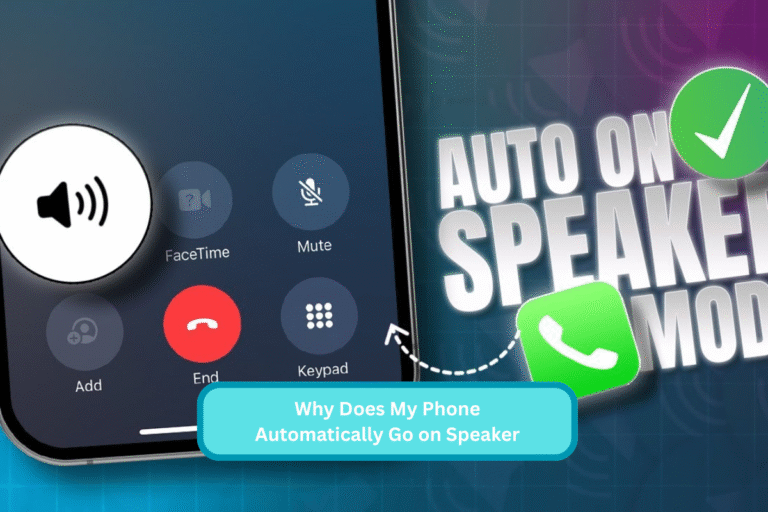
Don’t forget to explore any “Do Not Disturb” settings that could accidentally mute vibrations, a hidden gem often overlooked. A vibration phone helps you stay aware of calls and messages without making any noise.
Conclusions
Troubleshooting your phone’s vibration settings can be a straightforward process if you follow the steps outlined in this guide. Make your phone vibrate easily to get silent alerts without disturbing others. Whether it’s checking for software updates, adjusting your settings, or even exploring hardware options, small adjustments can make a big difference.
Don’t forget to regularly test your phone after making changes to ensure everything is functioning properly. By taking these proactive steps, you can enjoy the full benefits of your phone’s vibration feature. So go ahead, give it a try and make sure you never miss an important notification again.
FAQs
How do I Make My Phone Vibrate?
Making your phone vibrate is usually a pretty straightforward process! Most smartphones have a dedicated vibrate mode that can easily be activated. For example, on iPhones, you can simply toggle the Silent switch on the side of your device. If you don’t see the switch or want more options, go to Settings > Sounds & Haptics, and make sure “Vibrate on Silent” is turned on.
How do I Make My Phone Vibrate on Android?
Check Your Settings:
Go to *Settings* > *Sound & vibration*.
Ensure that *Vibrate* is enabled for notifications and calls.
Adjust Vibration Intensity:
In the *Sound & vibration* menu, look for *Vibration intensity*.
Adjust the sliders for notifications and calls to your preferred strength.
App-Specific Vibration:
Open the specific app you want to vibrate (e.g., messaging or email apps).
Check the app settings (usually found in *Settings* > *Notifications*) to ensure vibration alerts are
turned on.
Test It Out:
Send a test message or call your number to confirm that vibration works.
If it still doesn’t vibrate, consider restarting your phone or checking for software updates.
How Do I Test My Phone for Vibration?
Testing your phone for vibration is pretty straightforward! Start by navigating to your phone’s settings. On most devices, you’ll find an option for “Sound & Vibration” or something similar. Once there, look for a setting that allows you to toggle vibrate mode on. You can press the volume buttons to see if the vibration kicks in, or you can switch to “Do Not Disturb” mode and check if your phone vibrates when you receive a call or message.